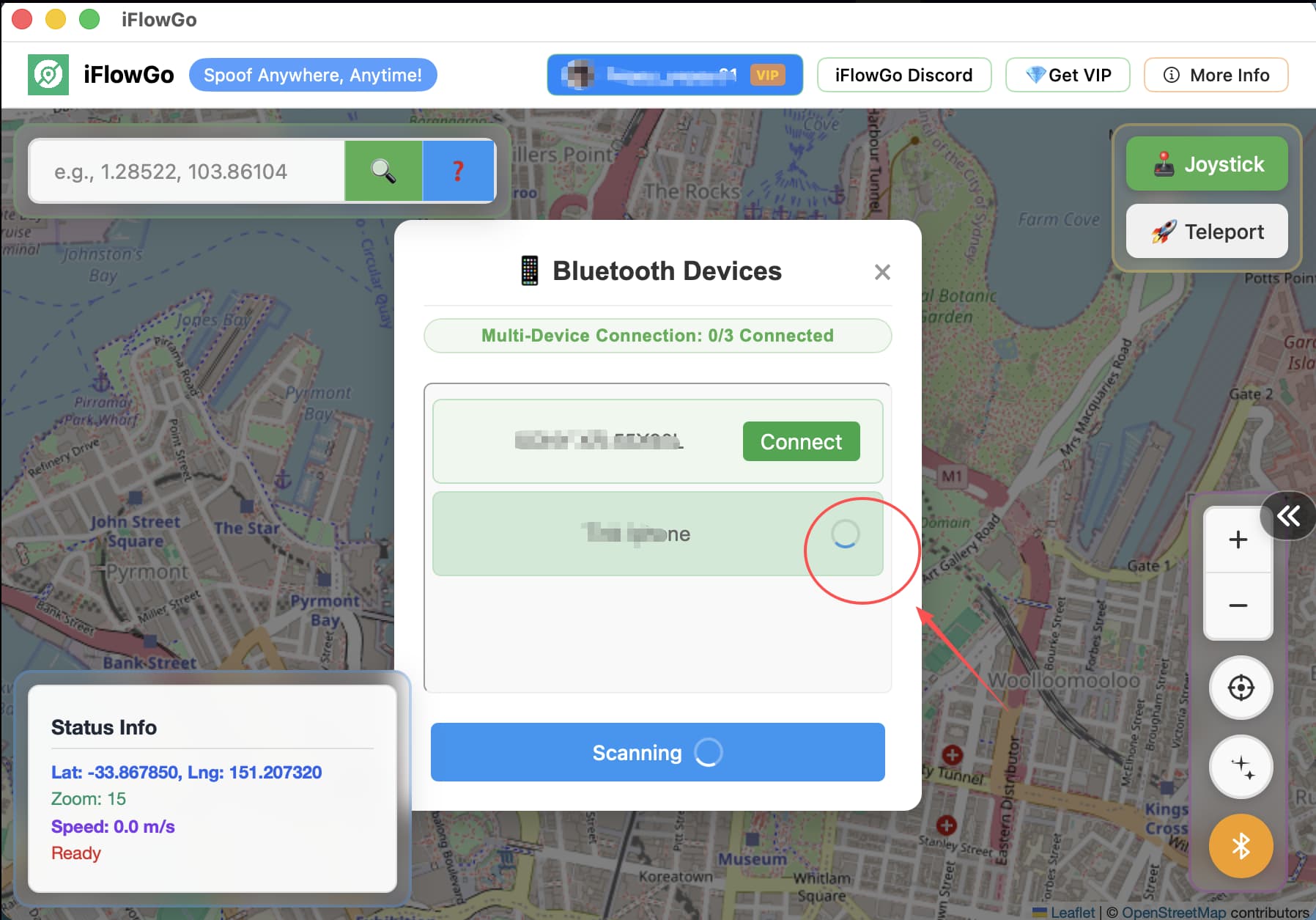
 Before Pairing – Please Note
- Your computer’s Bluetooth can only connect to one iPhone at a time.
- Make sure your computer isn’t auto-connecting to other Bluetooth devices (e.g., headphones or speakers). Disconnect them if needed.
 Bluetooth Won’t Connect or Keeps Failing?
Try this sequence:
- Turn off Bluetooth on both your computer and iPhone to disconnect everything.
- Then, follow the setup guide step by step again.
- You should be able to complete the connection smoothly.
If this doesn’t work, move to
below.
 Important: Bluetooth Pairing Status Must Match
When pairing, both your computer and iPhone must be in the same state – either:
- both have never paired with each other before, or
- both have already been paired before
 If one side is paired and the other is not, your Bluetooth connection will keep spinning and never complete.
 If you see a spinning/loading loop, check the pairing status on both your iPhone and computer and make sure they match.
 This is especially common on Mac computers – if your Mac won’t connect, this is very likely the reason.
Alternative Fix – Use a Mobile Hotspot
 Why this happens
Some networks (LAN cable or Wi-Fi) may block certain iFlowGo API traffic, causing connection issues.
Also, if you’re using a VPN or your local Wi-Fi/router is filtering traffic, the verification request may fail – which can also cause the Bluetooth spinner to loop forever.
Try this:
- Turn on the hotspot on your iPhone (or another phone).
- Connect your computer to that hotspot Wi-Fi.
- Try pairing again in iFlowGo.
 If it works with the hotspot, the issue is likely your router’s security rules or DNS settings.
- You can either adjust your router settings or continue using the hotspot as a workaround.
 For Trial Users – Don’t Worry
If you run into Bluetooth connection issues during your trial period and cannot use iFlowGo properly:
I will extend your trial days until you’re able to get it working smoothly.
You won’t lose your chance to experience iFlowGo.
 Need More Step-by-Step Help?
Check the iFlowGo Wiki:
https://wiki.iflowgo.com/
iFlowGo is the safest iOS spoofing tool for Pokémon GO & Monster Hunter Now. 100% safe, no jailbreak, no ban risk. Teleport, joystick & routes — play anywhere safely.
🖧 Still Not Working? Try a Bluetooth Adapter
If you’ve tried all the steps above several times and it still won’t connect, the issue may be related to your computer’s Bluetooth signal or driver.
 Solution: Try a USB Bluetooth adapter.
- This is especially helpful for computers without built-in Bluetooth, or with unstable Bluetooth signals.
- Make sure the adapter supports Bluetooth 5.0 or higher.
- Most adapters will work, but for best compatibility, choose one similar to the model I’ve shared.